Windows XP Remote Desktop Full Screen Problem and Solution
Hi Everyone,
You might be using Windows XP’s Remote Desktop functionality to login to a remote system in a network and when you login then by mistake or intentionally if you press resotre/maximize button then after that Remote Desktop window is not restored to maximized position.
See here is a Simple Solution to Windows XP Remote Desktop Full Screen Problem. (I am using Windows XP, but it should apply to other versions of Windows too. If you find this useful then let us know other OS on which this applies.)
Steps to solve the windows remote desktop connection full screen maximize problem.
Click on START > ACCESSORIES > COMMUNICATIONS > REMOTE DESKTOP CONNECTION
Then following screen will appear…
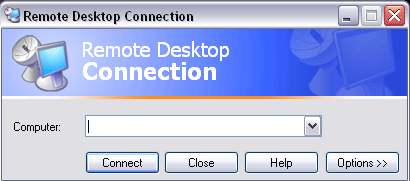
Then Click on OPTIONS>>DISPLAY
following screen will appear
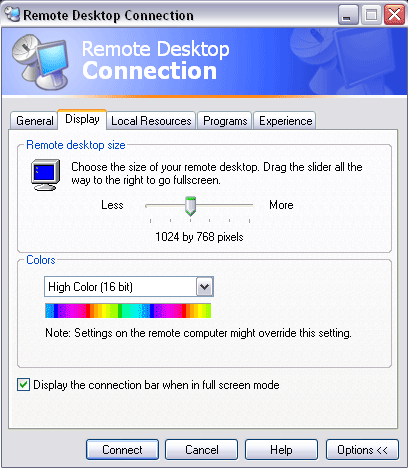
Then there is a SLIDER in “Remote desktop size” panel
Move that slider to right side to the max, so your screen should look like following picture…
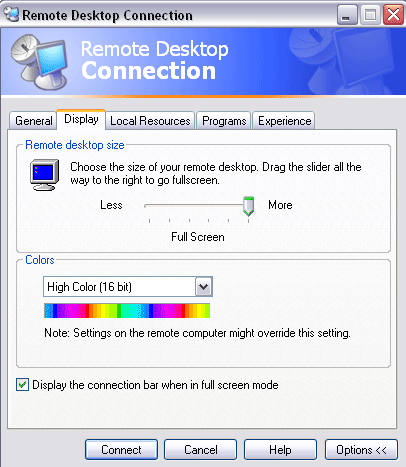
And you are done…….now Click on CONNECT….Your screen will be FULL SCREEN.
(I am using Windows XP, but it should apply to other versions of Windows too. If you find this useful then let us know other OS on which this applies.)



when we restore window it wont go back to full screen 🙁 so its like we have to do it manually by disconnecting and reconnecting 😛
I did these settings it was already all the way r says full screen still2/3 screen