Google Spreadsheet Drag and Increase Numbers
Its a very simple solution to a very simple problem. If you don’t use Google Spreadsheet regularly then you might have faced this problem. Recently I was working on a google spreadsheet and I was filling some data. I entered list of items and then wanted to number them.
Just created a new column and tried to drag it down, but same digit was getting copied instead of increasing number.
Tried different combinations while dragging like pressing control key, alt key, shift key.. but still I was not able to do that.
Then thought of doing it with simple formula.
This is a very simple useful tip for those who are not much acquainted with Google Spreadsheet Excel File. Because in Microsoft Excel we can drag numbers and increase them easily but when it comes with Google Excel same doesn’t work, so we can write a simple formula and increase numbers by dragging in Google Spreadsheet.
Steps to Create incremental numbers in Google Spreadsheet Excel File
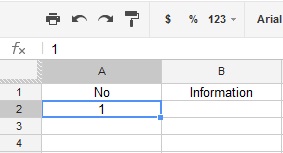
Enter any first digit (eg. 1) in cell A2.
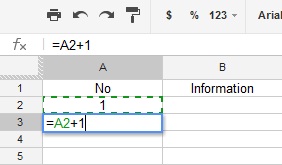
Then in cell A3 we write this formula =A2+1 and press enter.
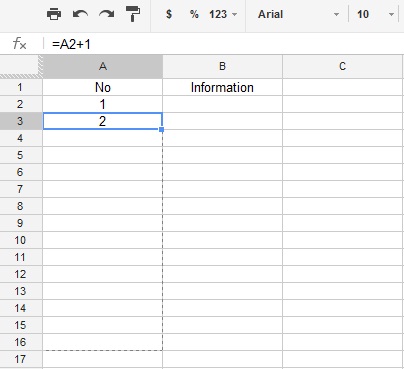
Then now start dragging this cell down.
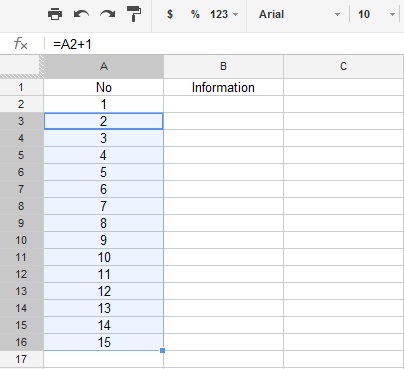
Once you leave dragging it shows count in increasing order. from 1, 2, 3… and so on.
If you think that this might be helpful to some of your friends, then do share this with them.
GPT 5.4: The Next-Generation AI Model Transforming Reasoning, Coding, and Productivity Artificial Intelligence is evolving…
GPT-5.3 Instant is OpenAI's latest ChatGPT model update, prioritizing smoother conversations, fewer refusals, and higher…
Are you tired of scrolling endlessly through Google results trying to find clear, trustworthy answers?…
In recent years, the process of software development has rapidly evolved—developers demand smarter tools and…
India has emerged as one of the fastest-growing and most significant markets in the global…
On October 6, 2025, OpenAI unveiled AgentKit, a unified suite of tools designed to help developers and…
This website uses cookies.
View Comments
Buddy many usefull article. Good Work !!
Nice explanation. On a related note, you can include "$" in a cell reference to prevent incrementation.
$A2 - locks the column reference
A$2 - locks the row reference
$A$2 - locks both
When dragging "$A$2' down the page, each new cell will continue referencing "$A$2", rather than A3, A4, A5, etc.
Comes in especially handy when you want to drag a formula that contains several cell references, but you want one (or more) of those cell references to remain constant.
dragging without "$":
=(A2+C2)+1
=(A3+C3)+1
=(A4+C4)+1
=(A5+C5)+1
dragging with "$":
=($A$2+C2)+1
=($A$2+C3)+1
=($A$2+C4)+1
=($A$2+C5)+1
Cheers!